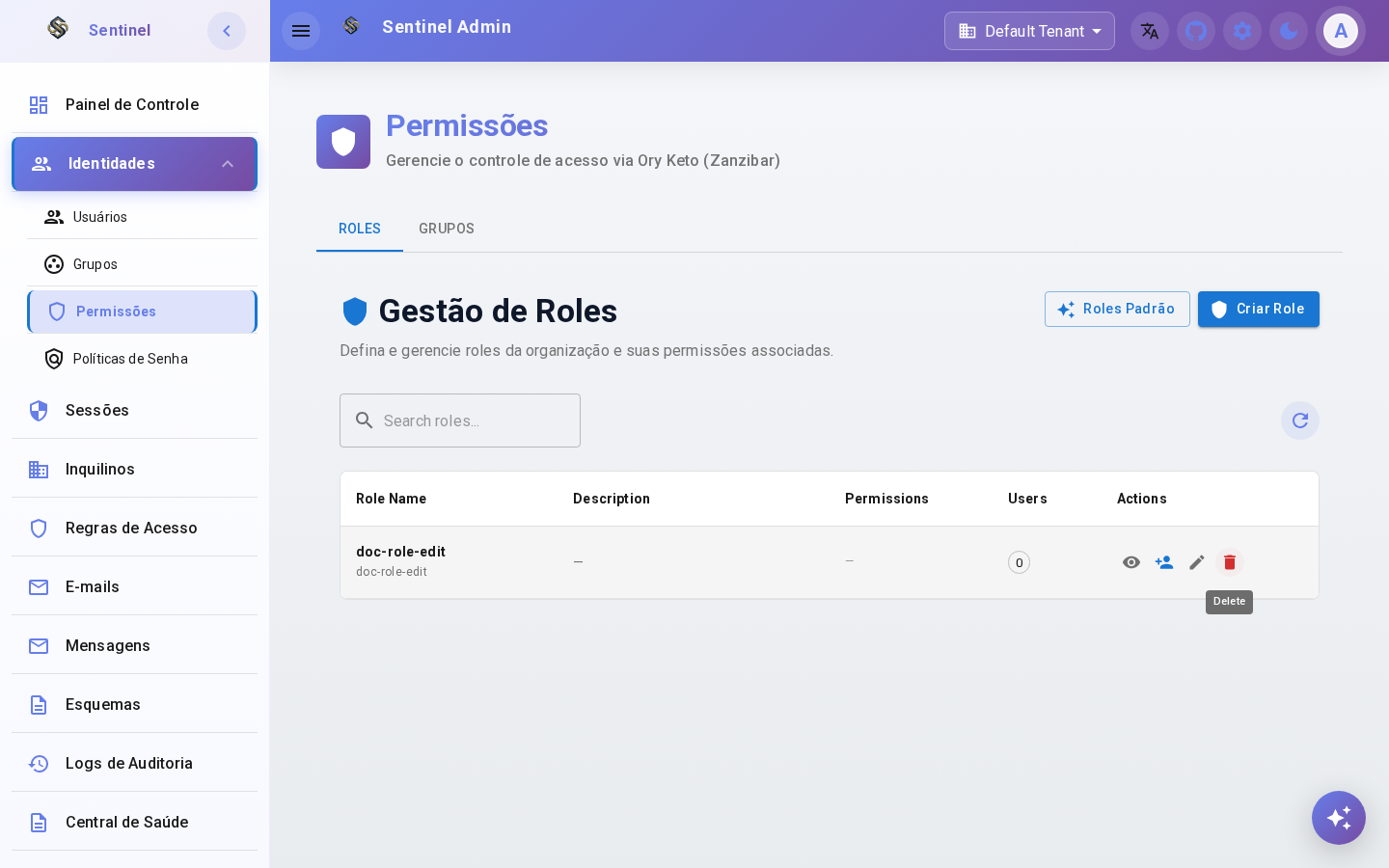
Managing Roles
Sentinel Admin Console
Administrator
"Side Menu > Identities > Permissions"
Roles List
Step 1: Access the Permissions section from the side menu under Identities.
View and manage all roles defined in your organization. Roles group permissions and are assigned to users or groups.
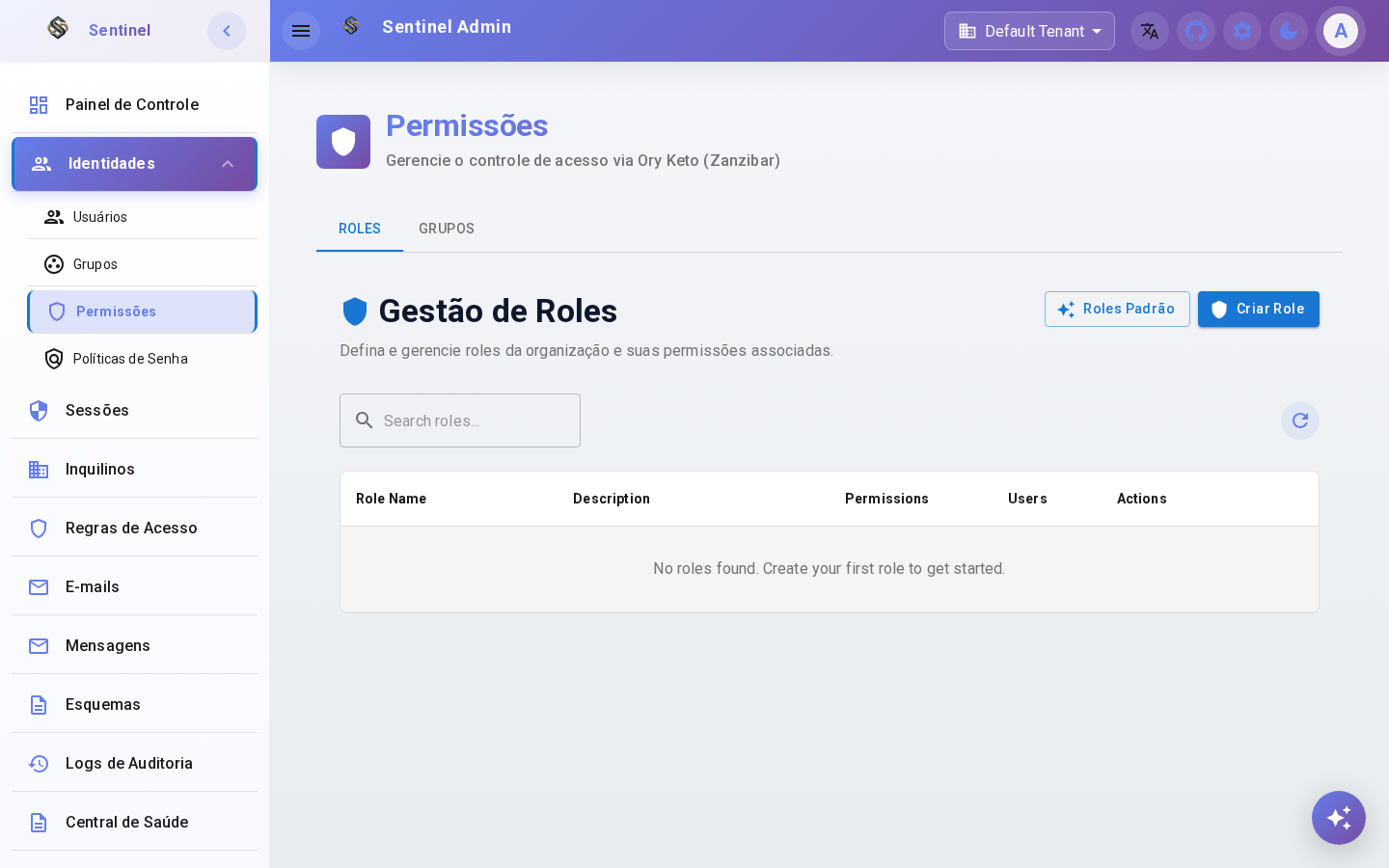
Create Role
Step 2: Click the "Create Role" button.
Open the role creation dialog to define the name, display name and associated permissions.
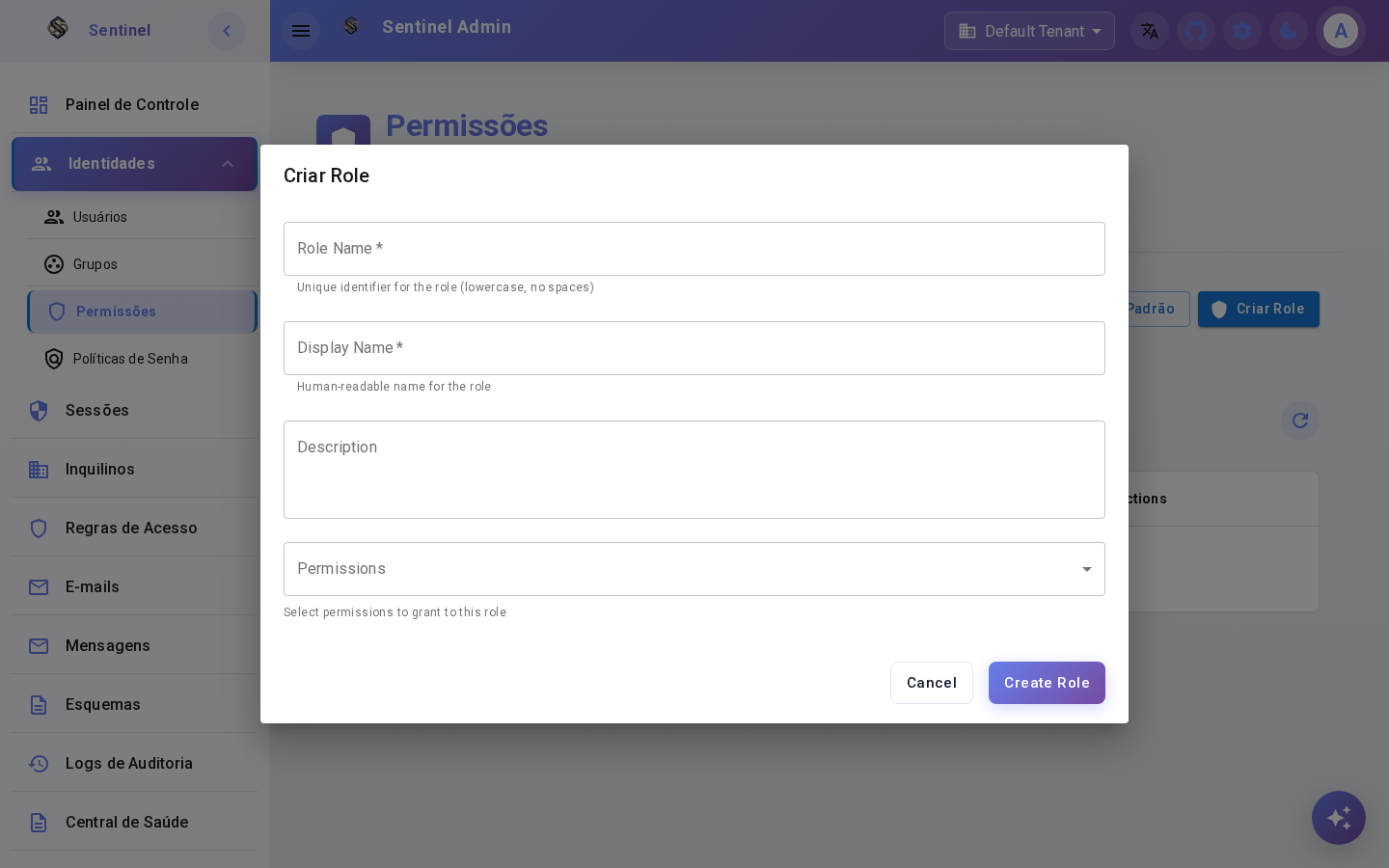
Fill Role Details
Step 3: Fill in the role information and select permissions.
Enter the role name, display name and description. Select which permissions this role grants.
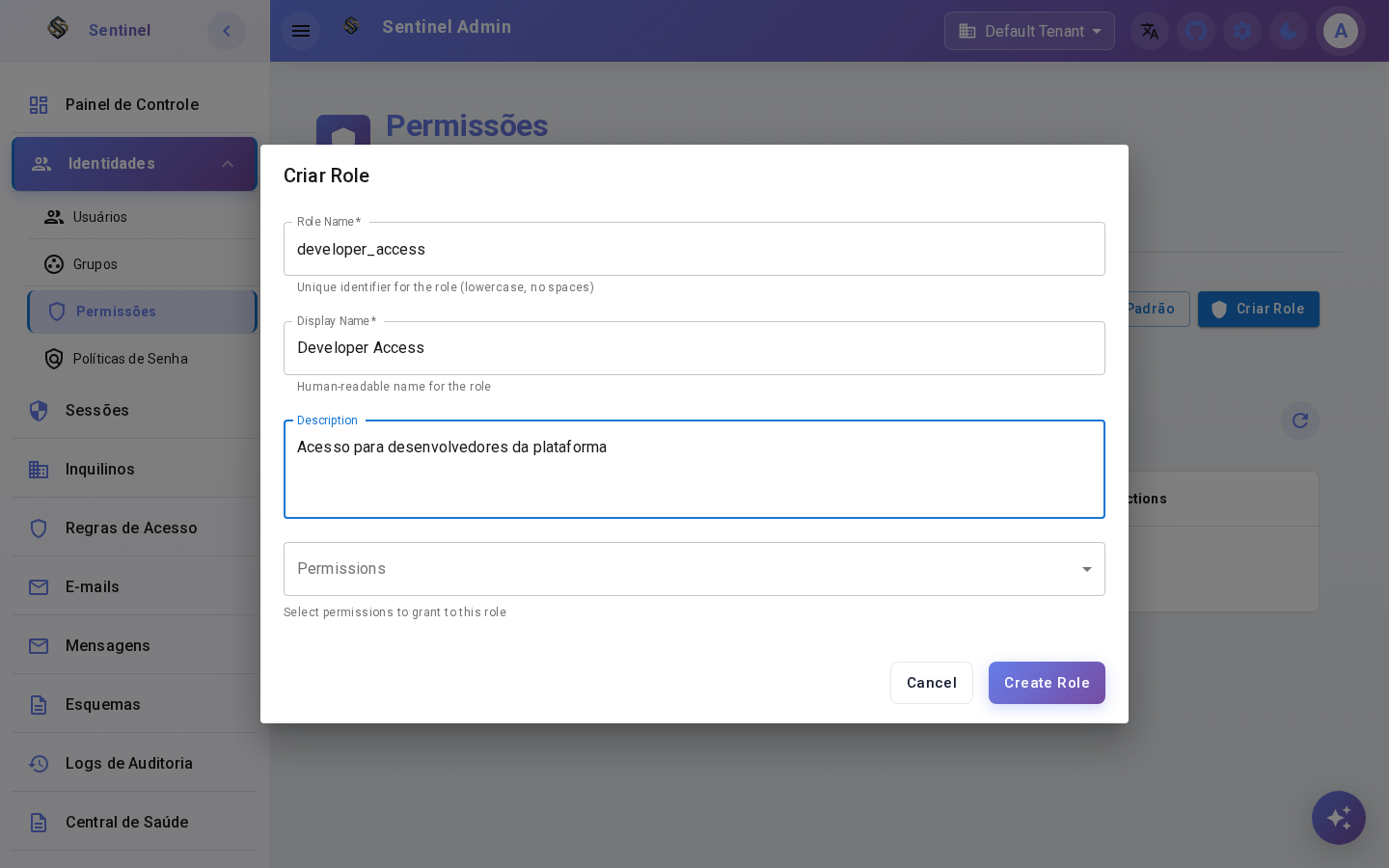
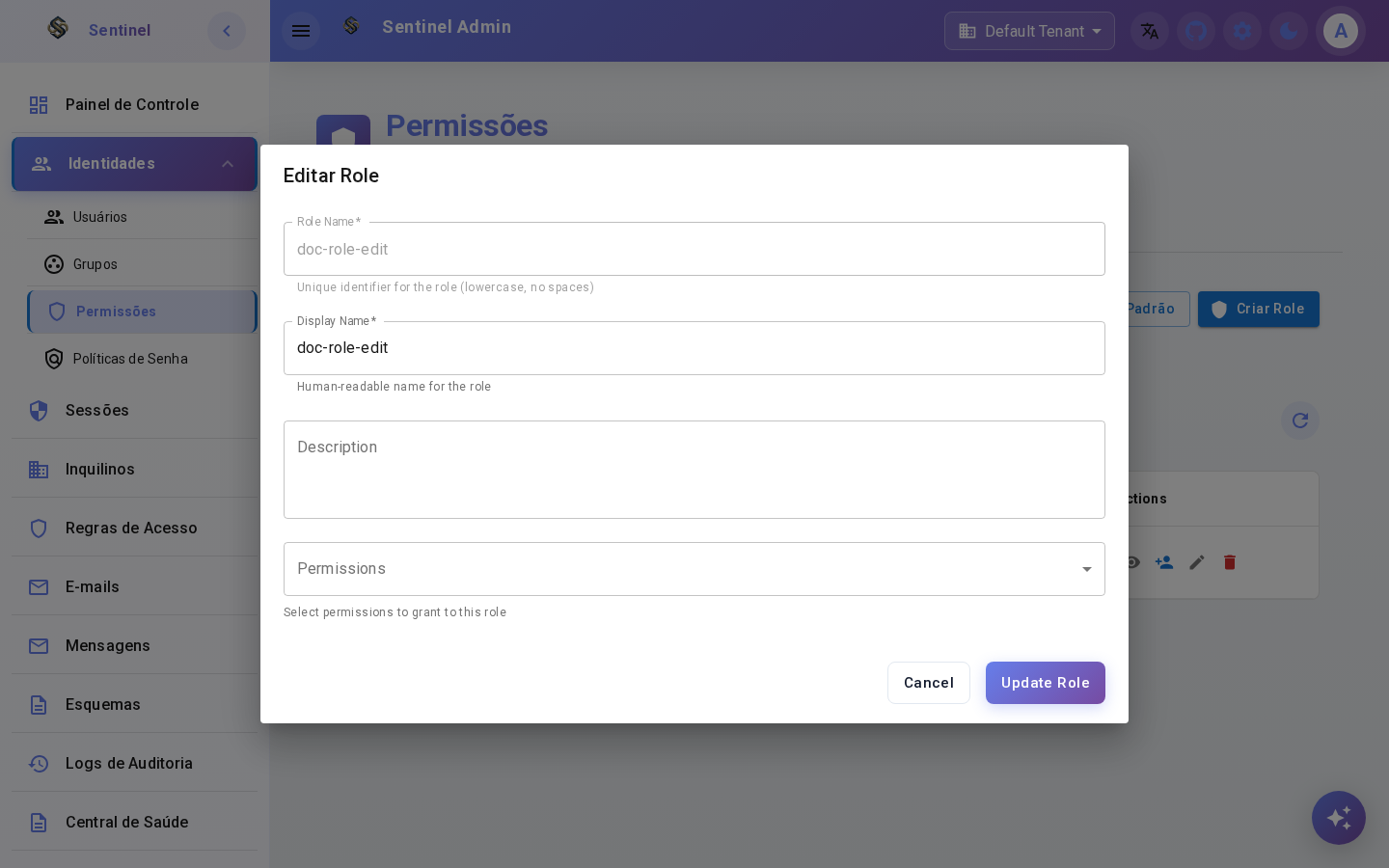
Edit Role
Step 4: Click the edit icon on the role row.
Update the role's display name, description or permissions. Changes apply immediately to all users and groups with this role.
Delete Role
Step 5: Click the delete icon and confirm deletion.
Permanently remove a role. All assignments to users or groups will also be revoked.